Semi-Autonomous Policy
Semi-autonomous policy lets the agent execute certain actions without operator approval, based on rules you configure for the realm. Instead of approving every action by hand, you set a trust level, a scope of targets, and exception rules that decide what runs automatically and what still waits for your sign-off.
At a glance
- What it is — realm-scoped rules that let the agent auto-execute certain actions instead of waiting on operator approval.
- When to use it — let the agent auto-run low-risk actions instead of pausing for every step, or restrict autonomy to a well-defined scope.
- Inputs — a trust-level preset (Cautious/Balanced/Aggressive) or custom policy (intrusiveness ceiling, enabled tools, browser mode), Trusted Targets, optional Infrastructure Allowlist, exception rules, optional natural-language intent via Configure.
- Outputs — an effective policy that auto-executes or queues actions for approval; saved exception rules; an optional per-operation override.
- Related objects — Operations, Notifications, Realms, Automations.
- Common actions — Customize, Save, Add (a trusted target), Enable/Disable (an exception rule), Delete.
- API / tool links — UI only — no public API.
How it works
By default, every action waits for operator approval. The policy evaluates each proposed action against your settings and either auto-executes it or queues it for approval. Whether an action auto-executes depends on its intrusiveness, the tool it uses, and whether its target is in scope.
Policy is realm-scoped — it applies to every operation in the realm. You can also override the policy for a single operation from inside that operation (see Per-operation override).
Trust level
A trust-level slider sets the autonomy preset. There are three presets:
- Cautious — web research, Cybergraph and REST API calls; shell, Python, browser and filesystem disabled. Best for unfamiliar targets.
- Balanced (default) — safe reconnaissance auto-runs; scans and mutations need approval. The default for new realms.
- Aggressive — scoped exploits auto-run; only destructive actions need approval. Requires a well-defined scope.
Each preset combines an intrusiveness ceiling with a set of enabled tools and a browser mode. Select a preset as a starting point, then either fine-tune it with the Custom Policy builder or let it adapt over time through exception rules.
Auto-approve output files
A separate toggle, Auto-approve output files, skips manual approval for generated output files regardless of the selected preset.
Custom Policy
To go beyond the presets, select Customize to switch the Trust Level card into Custom Policy mode. A custom policy exposes:
- Auto-approve up to — the intrusiveness ceiling. Actions at or below this level execute automatically.
- Enabled tools — checkboxes for Bash, Python, Browser, Web Search, and MCP Tools.
- Browser Mode — Evidence Only or Interactive.
Beyond the checkboxes above, Cybergraph, Filesystem (file read, write, edit, glob, and grep), and REST API access are also part of the policy. They are enabled by default; adjust them through the Configure playbook, which can also report a capability's current state.
Save or discard the changes from the buttons that appear. Select Switch to preset to return to the slider.
To turn an intent into custom settings without configuring each field, expand Describe what you need, type what you want, and select Configure playbook. This is one of the two Configure entry points.
Trusted Targets
Trusted Targets is the scope — the domains and IPs that actions can target automatically. Add entries by hostname, IP, CIDR range, or wildcard domain (for example example.com, 10.0.0.0/8, or *.internal.io).
With no trusted targets, actions targeting external hosts need approval. When the agent runs an approved action against a new target, that target appears under Suggested; select Add to promote it into the trusted list.
Infrastructure Allowlist
The Infrastructure Allowlist is separate from Trusted Targets. It holds IPs and CIDRs for tool infrastructure — DNS resolvers, Docker networks, and similar — that the agent connects to as part of running a tool rather than as an assessment target. These entries are filtered out before scope checking, so they never count as in-scope targets. The allowlist does not lift the always-blocked floor below.
Always-blocked targets
localhost, 127.0.0.1, ::1 and 169.254.169.254 always require approval, whatever the rest of
the policy says. Three properties are worth knowing:
- Adding one of these to the Infrastructure Allowlist does not lift the block. The allowlist only affects scope checking.
- Nothing removes them — not Configure, not a direct settings update. They are restored whenever the policy is read or written.
- They are separate from Trusted Targets: an entry here overrides anything the scope allows.
Matching is by exact target text, so list every representation of a host you want always-blocked — for example both its IP and any hostname or port form you expect to see.
Always-blocked command patterns
Every realm also ships with patterns that force approval for destructive shell commands — rm -rf,
mkfs, dd, passwd, useradd, chmod 777, chown and sudo. An action whose command matches
one of these needs approval regardless of the intrusiveness ceiling, and the per-action exception
rules below cannot override it.
You can ask Configure to add a pattern — for example, to always require approval for
terraform destroy. No screen in Realm Settings removes a blocked command pattern, and Configure
cannot remove one, so ask Configure to confirm the exact pattern before it adds it. The patterns
listed above are different: they are a floor, restored whenever the policy is read or written, so a
realm cannot end up without them.
Exception Rules
Exception rules let specific actions auto-execute regardless of the trust level. They are created when you approve an action: approving an action can save a rule that allows the same action to run automatically in the future.
Each rule shows the tool it applies to, a risk badge derived from its intrusiveness, an enable/disable switch, and a delete button. Disable a rule to suspend it without losing it, or delete it to remove it.
Configure assistance
When you want Cracken to translate an intent into semi-auto settings, use the Configure playbook. There are two entry points:
- In the Custom Policy builder, expand Describe what you need, type the intent, and select Configure playbook.
- Inside an operation, use the
@Configuremention and describe the desired behavior in natural language.
For example:
"Allow all nmap scans on 10.0.0.0/8 but require approval for any exploitation attempts. Never run destructive actions against production databases."
Cracken creates a Configure operation from the request and proposes matching settings. Review the operation's proposed changes before applying them.
Configure the policy
- Open Realm Settings and select the Semi-Auto tab.
- In Trust Level, choose a preset, or select Customize to build a custom policy.
- In Trusted Targets, add the domains, IPs, ranges, and wildcards actions may target automatically.
- Optionally, in Infrastructure Allowlist, add tool-infrastructure IPs and CIDRs to exclude from scope checking.
- Exception rules accumulate as you approve actions; review and toggle them in Exception Rules.
- Save each card's changes from the buttons that appear after you edit it.
To adjust the policy from inside an operation, use the @Configure mention and review the resulting Configure operation.
Per-operation override
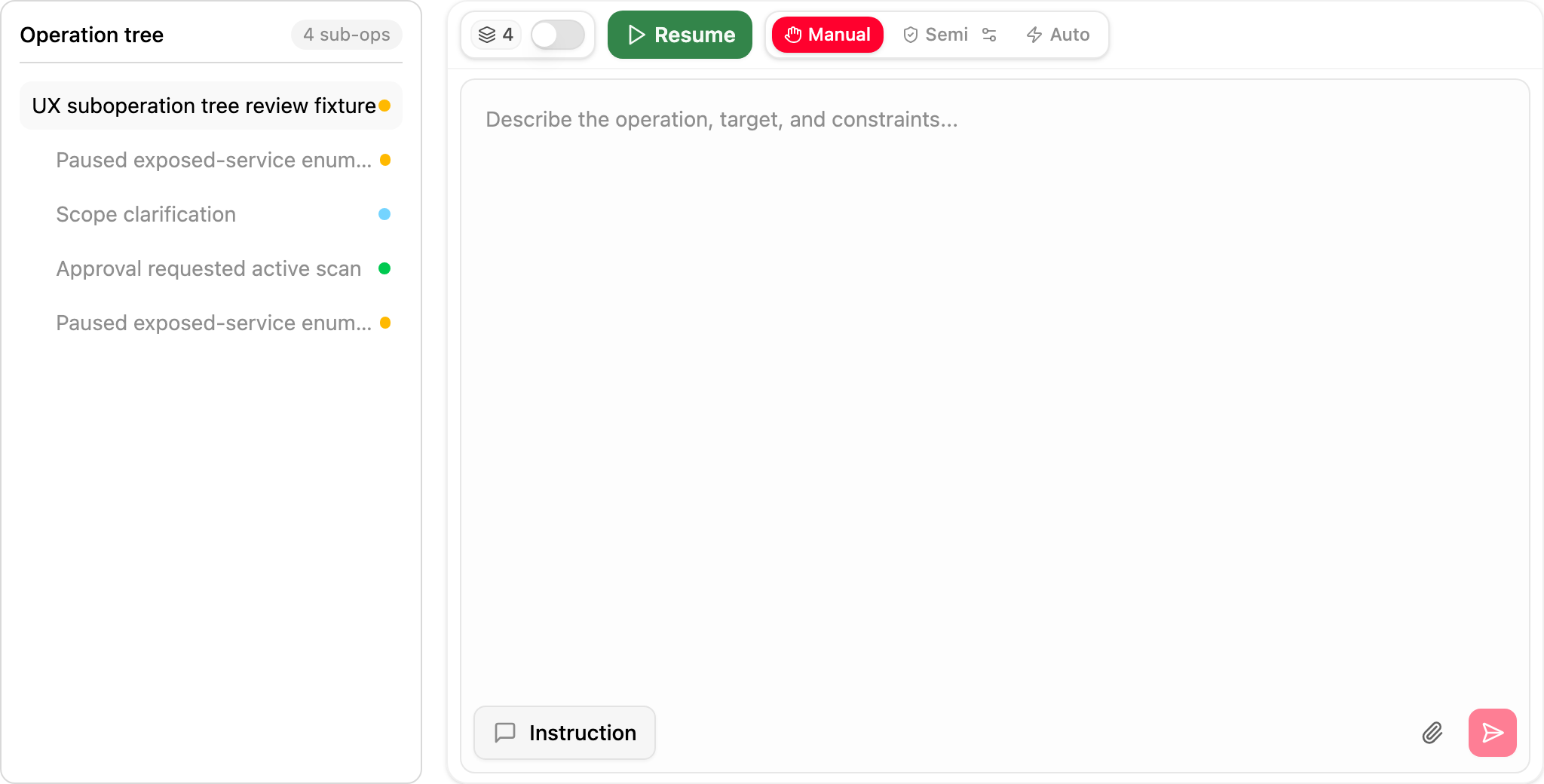
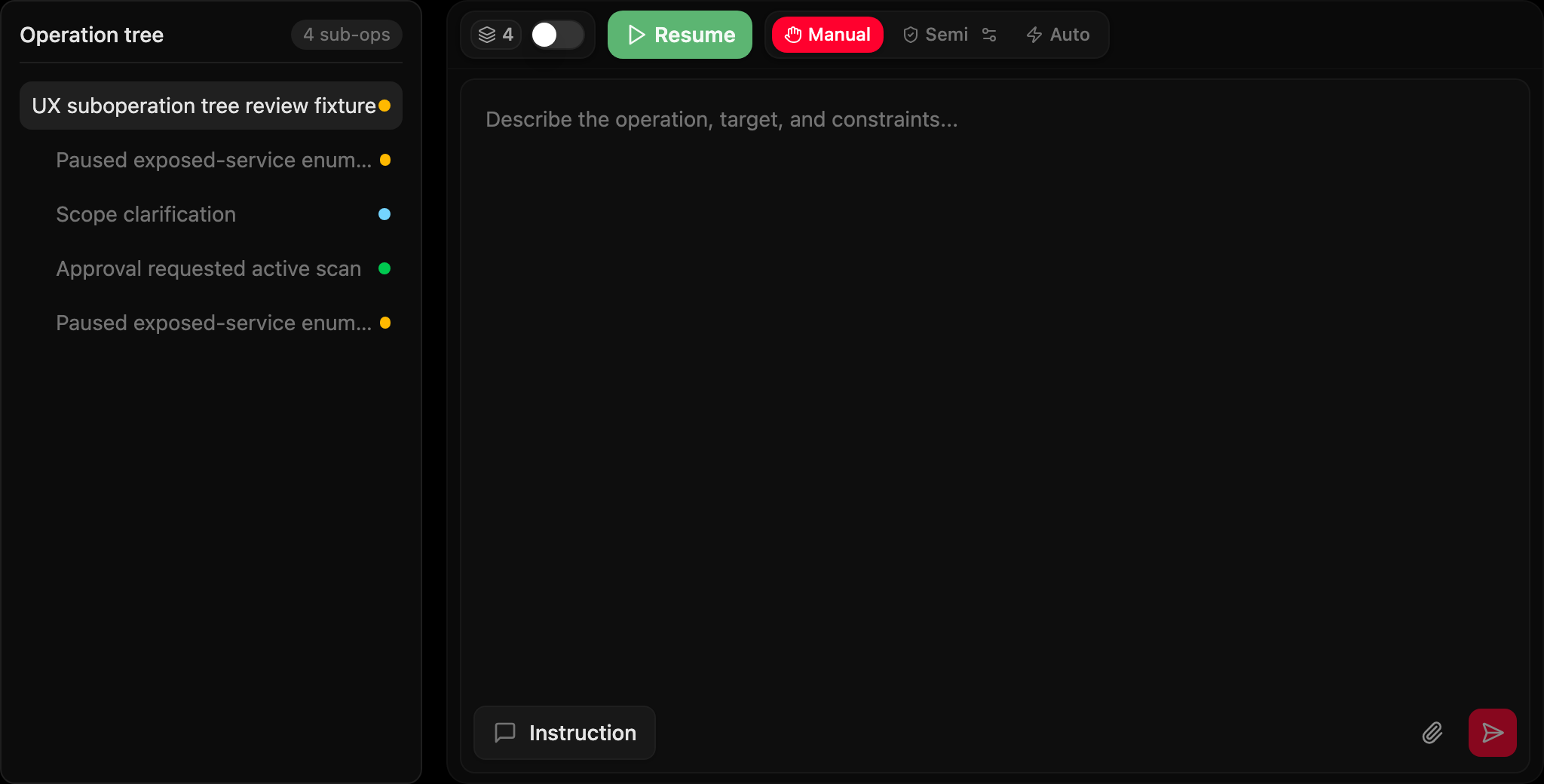
A single operation can run under a different policy than the realm default. The autonomy switcher at the top of the operation — Manual, Semi, or Auto — sets the level for that operation, and the Edit semi-auto override control next to it opens the full semi-autonomous settings scoped to just that operation, leaving the realm policy unchanged.
Next steps
- Operations — where actions are proposed, approved, and auto-executed.
- Notifications — how pause-and-ask approval requests reach you.
- Realms — the boundary the policy applies to.
- Automations — create operations automatically, which then run under this policy.